
Download DumpMedia Video Converter – Fast, Free, Secure Video Conversion Tool
Overview – What Is DumpMedia Video Converter?
DumpMedia Video Converter is a robust desktop‑level video conversion suite built for Windows, macOS, and Linux users who need a reliable, all‑in‑one solution for turning any media file into the exact format they require. Unlike many free converters that sacrifice quality or bombard you with ads, DumpMedia focuses on delivering a clean, secure environment where you can convert, edit, and preview videos without compromising the original fidelity. The software supports both video and audio streams, allowing you to extract, replace, or remix tracks as part of the conversion workflow.
Whether you are a casual home‑user looking to watch movies on a smart TV, a content creator needing quick batch conversions for YouTube uploads, or a professional who wants to preserve subtitles and multiple audio channels, DumpMedia Video Converter offers a flexible toolbox that adapts to a wide range of scenarios. Its intuitive interface mirrors familiar media players, so you can start converting within minutes of installation. Moreover, the program includes built‑in device presets for popular platforms such as iPhone, Android, PlayStation, and Xbox, which automatically adjust resolution, bitrate, and codec settings to match the target device’s specifications.
This eliminates the guesswork that often accompanies manual conversion and helps you avoid playback issues after the fact. In short, DumpMedia Video Converter aims to be the “Swiss Army knife” of video conversion, balancing ease of use with enough depth to satisfy power users, all while keeping the process secure and free from hidden fees.
Feature Deep Dive – Formats, Editing Tools, and Hardware Acceleration
- Supports over 300 output formats including MP4, MKV, AVI, MOV, WMV, FLV, WebM, and more.
- Batch conversion with queue management and automatic file naming.
- Built‑in video editor with brightness, contrast, saturation, and cropping sliders.
- Audio track replacement, volume normalization, and custom bitrate control.
- Subtitle import/export for SRT, ASS, and VTT formats.
- Device‑specific presets for iPhone, iPad, Android phones, tablets, gaming consoles, and smart TVs.
- Hardware acceleration via Intel Quick Sync, NVIDIA NVENC, and AMD VCE to speed up conversion by up to 5×.
- Preserves metadata such as title, artist, and chapter markers.
- Secure, ad‑free environment with automatic updates and optional cloud backup of conversion profiles.
- 24/7 email support and detailed knowledge base for troubleshooting.
The breadth of supported formats means you can handle virtually any media you encounter, from legacy MPEG‑2 files to the latest HEVC streams. The batch queue lets you line up dozens of videos, apply a single preset, and let the software work unattended—a real time‑saver for large media libraries. While DumpMedia is not a full‑blown video editor like Adobe Premiere, its lightweight editing suite covers the most common adjustments.
Simple sliders let you brighten a dark clip, boost saturation for a more vivid look, or trim unwanted sections before conversion. The subtitle manager is particularly handy for those who need to embed captions for accessibility or language support. One of the standout features is hardware acceleration; if your PC is equipped with a recent Intel, NVIDIA, or AMD GPU, the program will automatically detect the compatible codec and offload the heavy lifting to the GPU.
This results in faster conversions and lower CPU usage, which is especially beneficial when running multiple conversions simultaneously.
Installation, First‑Run Setup, and Compatibility
Installing DumpMedia Video Converter is straightforward. After you download the installer from the official website, run the .exe (Windows) or .dmg (macOS) file. The wizard guides you through a typical “Next‑Next‑Finish” flow, offering the choice between a one‑time purchase or a subscription that unlocks premium presets and priority support. During setup, you can opt‑in to automatic updates, ensuring you always have the latest codec packs and security patches. The installer occupies roughly 120 MB of disk space and creates a desktop shortcut for quick access.
Supported operating systems: Windows 10/11 (64‑bit), macOS 10.15 Catalina and later, and Linux (via Wine compatibility layer). The program runs smoothly on machines with at least 4 GB RAM and a dual‑core CPU; however, for optimal hardware acceleration you’ll want a modern GPU and at least 8 GB of RAM.
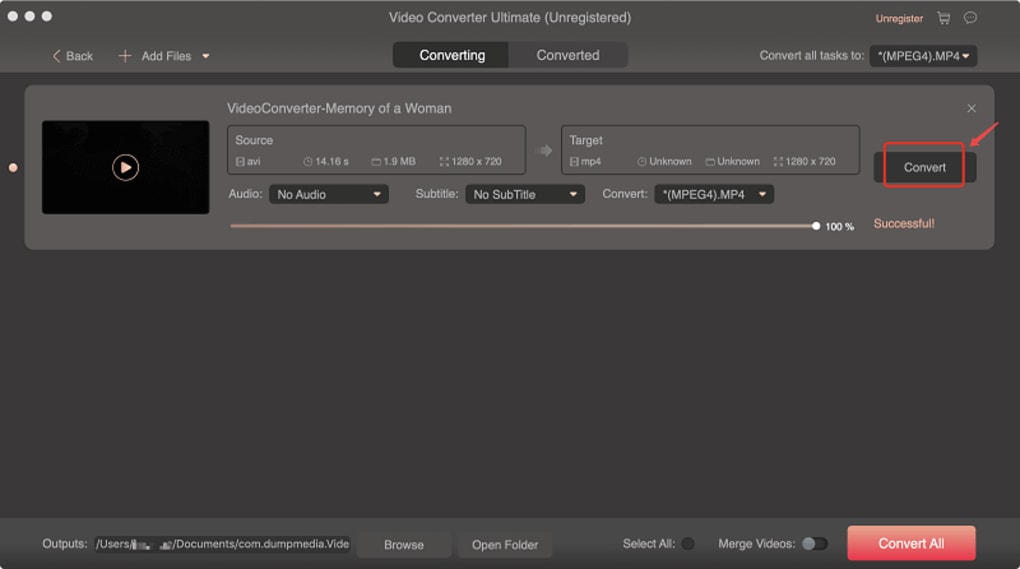
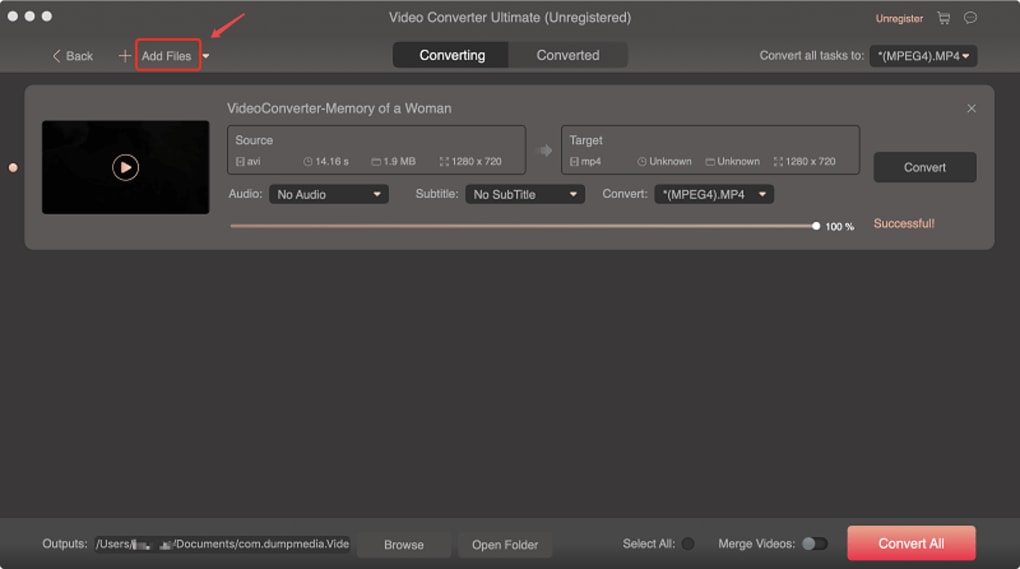
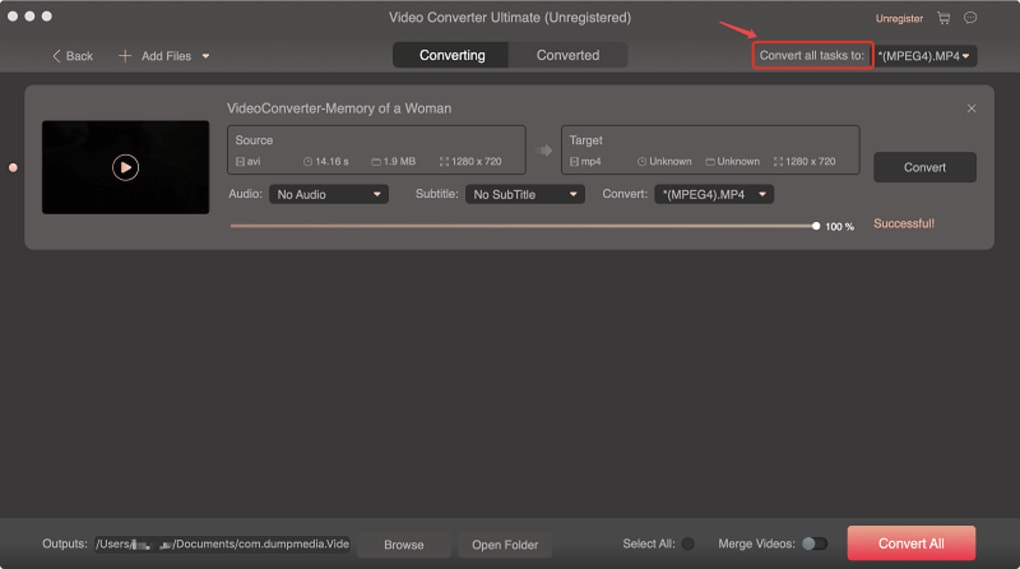
Upon launching the application for the first time, you are greeted by a welcome screen that walks you through creating your first conversion profile. You can select a source file, choose a destination format, and apply a preset or custom settings. The “Preferences” pane lets you configure default output folders, enable GPU acceleration, and set language preferences.
If you choose the subscription model, the activation key is entered here; the software validates it online and unlocks the premium features instantly. The user interface is divided into three main tabs: “Convert”, “Edit”, and “Batch”. The “Convert” tab handles single‑file conversions, “Edit” opens the lightweight editor, and “Batch” shows the queue with progress bars and estimated completion times.
All menus are searchable, and tooltips appear when you hover over icons, making the learning curve gentle even for users new to video conversion.
Pros, Cons, and Frequently Asked Questions
Pros
- Extensive format support eliminates the need for multiple converters.
- Hardware acceleration dramatically reduces conversion time on supported GPUs.
- Device presets simplify conversion for smartphones, tablets, and gaming consoles.
- Lightweight editing tools cover most everyday adjustment needs.
- Ad‑free experience with regular security updates.
Cons
- Advanced editing features (multi‑track timeline, effects) are limited.
- Linux support relies on Wine, which may not be as stable as native builds.
- One‑time purchase price is higher than some free alternatives.
Frequently Asked Questions
Can I convert 4K videos without losing quality?
Yes. DumpMedia Video Converter preserves the original resolution and bitrate when you select “Same as source” in the output settings. The hardware acceleration engine also handles 4K streams efficiently, so you won’t notice a quality drop as long as you keep the same codec or choose a high‑quality target.
Is there a free trial available?
DumpMedia offers a 14‑day free trial with full access to all premium features, including GPU acceleration and device presets. No credit card is required; simply download the trial installer and start converting right away.
Can I add subtitles to a video during conversion?
Absolutely. The subtitle manager supports SRT, ASS, and VTT files. You can either embed subtitles permanently (hard‑coded) or keep them as separate tracks (soft‑subtitles) for playback on compatible devices.
Does the software work on older Windows versions like Windows 7?
Officially, DumpMedia supports Windows 10 and later. While it may run on Windows 7, you might encounter missing codec support or reduced performance because hardware acceleration libraries are not fully compatible with that OS.
How does the pricing structure work?
You can choose a one‑time perpetual license for $49.99 USD, which includes lifetime updates. Alternatively, a subscription plan at $9.99 per month unlocks premium device presets, priority support, and cloud backup of your conversion profiles.
Conclusion – Should You Download DumpMedia Video Converter?
If you’re searching for a secure, feature‑rich video converter that balances ease of use with powerful hardware acceleration, DumpMedia Video Converter is a compelling choice. Its extensive format library and built‑in device presets eliminate the need for multiple tools, while the lightweight editor satisfies most day‑to‑day enhancement tasks. The main drawback lies in its limited advanced editing capabilities, which might push professional editors toward dedicated NLE software.
However, for the majority of home users, vloggers, and small‑business creators, the pros outweigh the cons. The 14‑day free trial lets you test every function without commitment, and the ad‑free environment ensures a distraction‑free workflow. In short, download DumpMedia Video Converter today, enjoy fast, high‑quality conversions, and keep your media library ready for any device or platform you choose.







